Run Locally
The DeltaTwin® Command Line Interface (CLI) enables you to run your DeltaTwin® component locally for testing and experimentation.
deltatwin run start_local -i inputs_file_example.jsoninputs_file_example.json is a file containing all input values. Below is an example input file that takes as input the URL of the GAEL SYSTEMS logo and an angle value of 90 degrees:
{
  "image": {
    "type": "Data",
    "url": "https://platform.destine.eu/wp-content/uploads/2023/11/cropped-favDEPL-180x180.png"
  },
  "angle": {
    "type": "integer",
    "value": 90
  }
}
Local Run Limitation
When running DeltaTwin® components locally, some input types are not supported:
- DriveData: Resources stored in DeltaTwin® Drive cannot be accessed remotely for local execution. You must download these files manually and update the manifest to reference the local path.
- URL with SesamEO API Key
Run on DeltaTwin® cloud environment
DeltaTwin® service provides a cloud environment to store and run your DeltaTwin® project.
Publish
To proceed, you will need to publish your DeltaTwin® by using the command ‘DeltaTwin® component publish’ ( see (CLI Documentation )) for more details).
For example, to publish the previous rotation DeltaTwin® as version 0.1, enter:
deltatwin component publish -t demo -v private 0.1the optional parameters indicates that:
-t demois a topic name for referencing our project. Later, you will be able to search DeltaTwins by topic name.-v privatemeans that the DeltaTwin® is only visible to you. If you set topublicthe DeltaTwin®will be visible and runnable by any user.
The DeltaTwin® component is automatically published in the namespace associated with the current user account. Publishing to a different namespace is not supported.
Once published, you can remotely run your DeltaTwin® component either with the command line or by using the DeltaTwin® web application.
Run using CLI
The following command enables to get the DeltaTwin®
deltatwin component listNow, use the name to run your DeltaTwin® component
deltatwin run start TWIN_NAME -i inputs.jsonBy default, the service runs the DeltaTwin® component located in the current namespace.
To run a DeltaTwin® component outside the current namespace, specify the namespace using the -n option:
deltatwin run start TWIN_NAME -i inputs.json -n <namespace>Run using UI
-
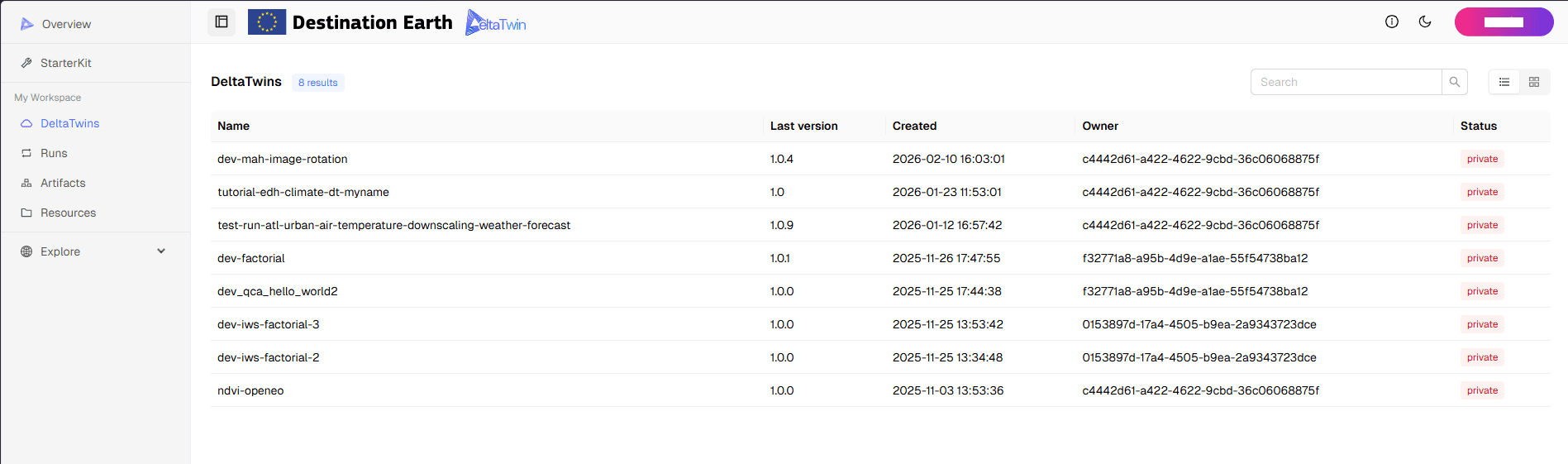
Access the list of DeltaTwin® components.
-
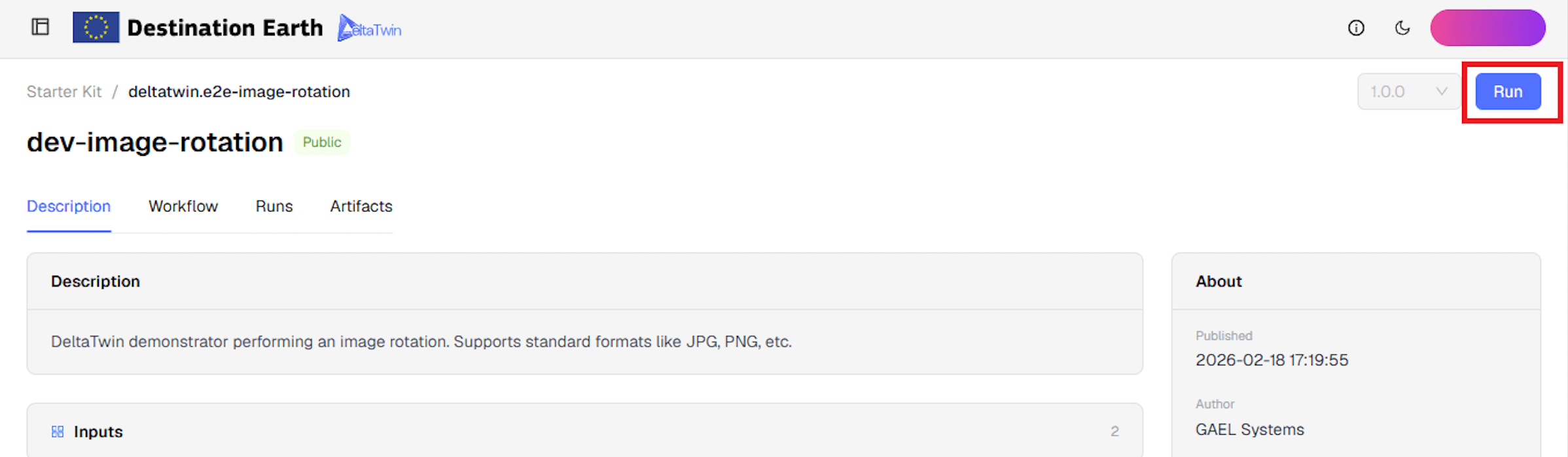
Select a DeltaTwin® to see its details, then press Run.
-
You are taken to a dedicated Run Configuration page. The left side shows the full workflow (inputs → models → outputs); the right side shows the Run configuration form, with a progress indicator (e.g.
0/2) tracking how many required inputs are configured.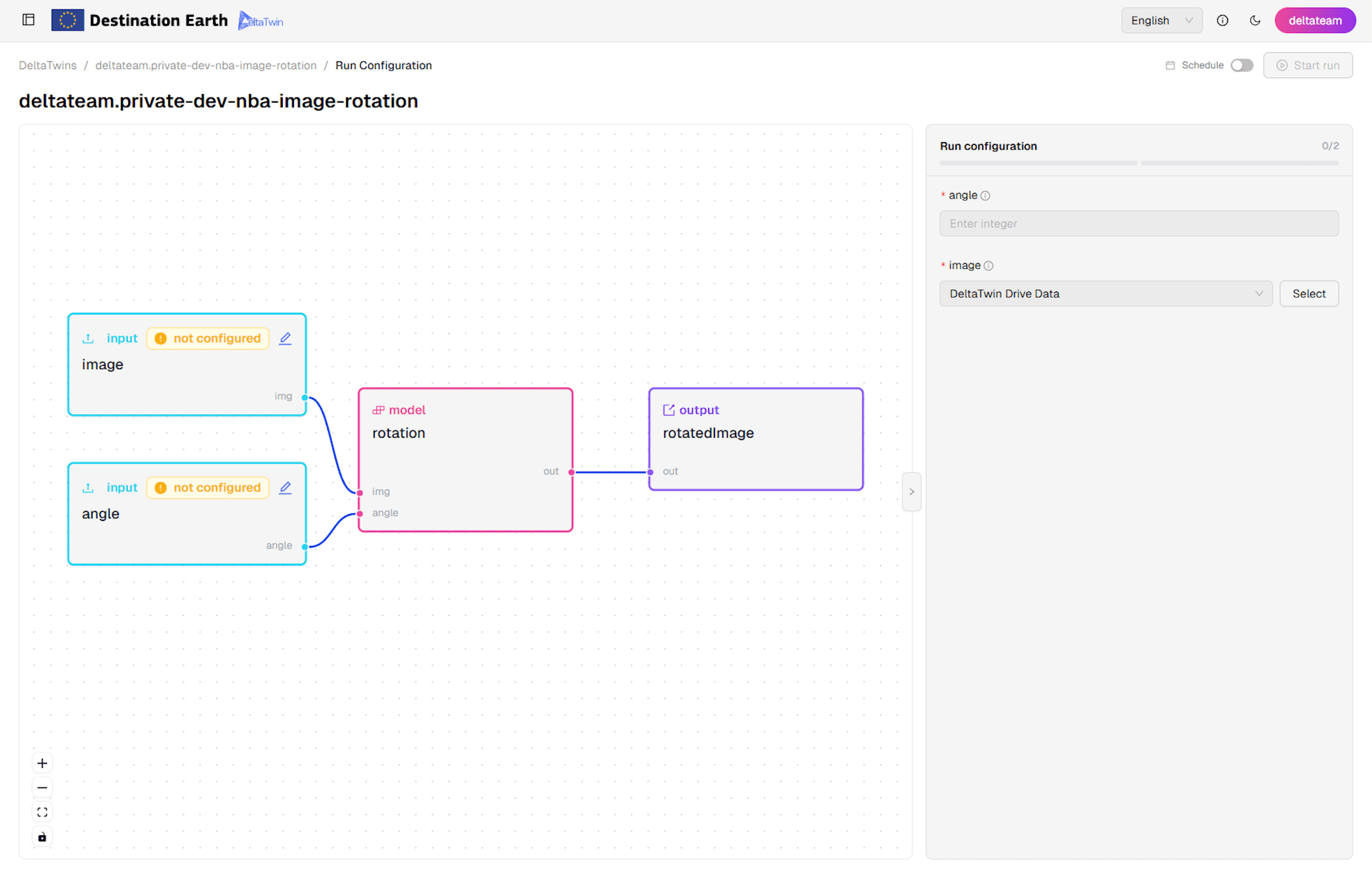
-
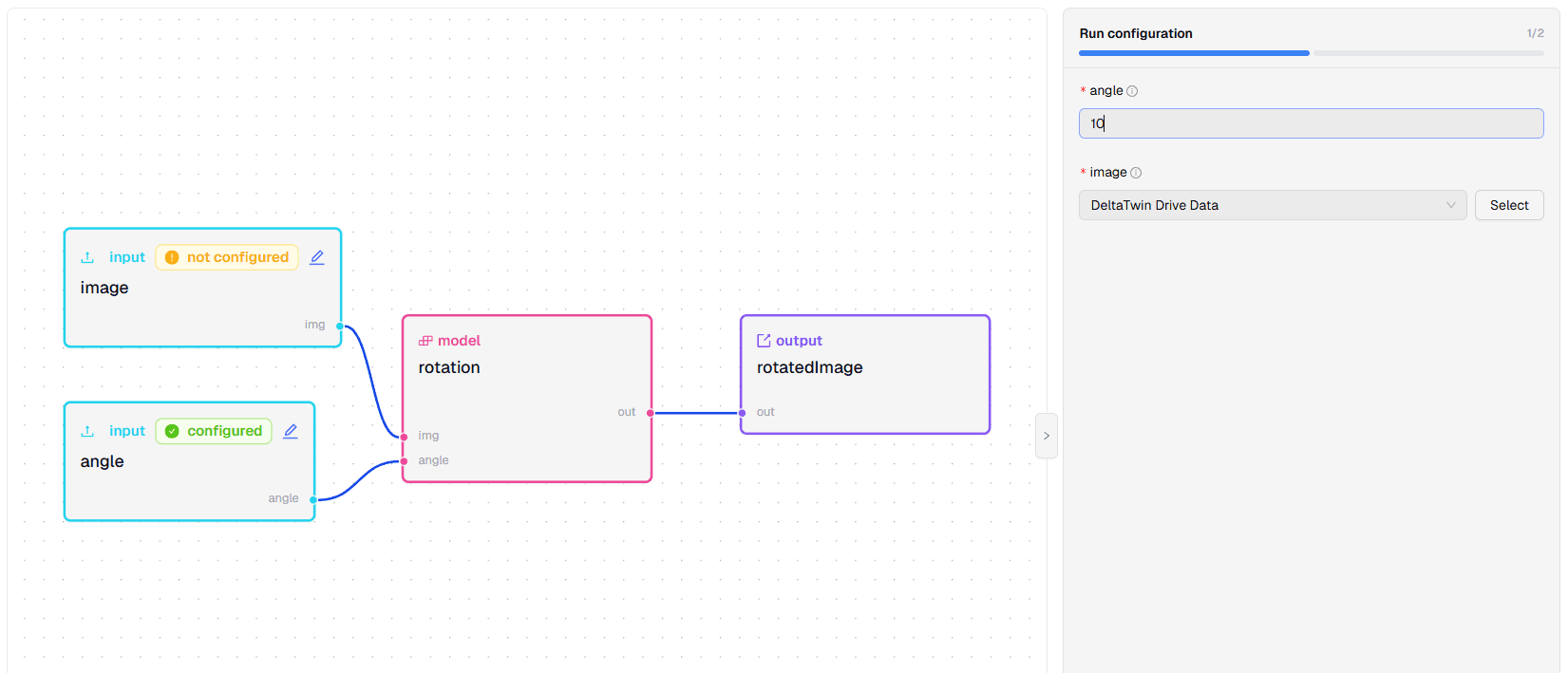
Each input node carries a badge: orange not configured or green configured. You can fill an input either via the form panel on the right or by clicking the pencil icon on the node — both views stay in sync.
-
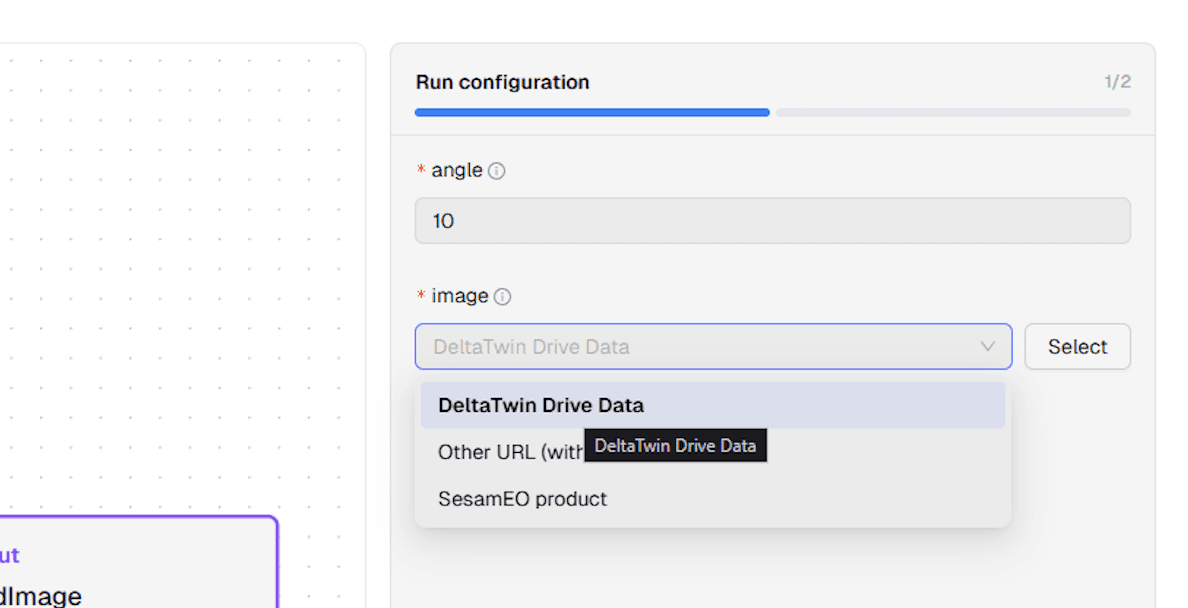
For inputs that expect a URL, a dropdown lets you choose the source: DeltaTwin Drive Data, Other URL (without authentication) or SesamEO product.
-
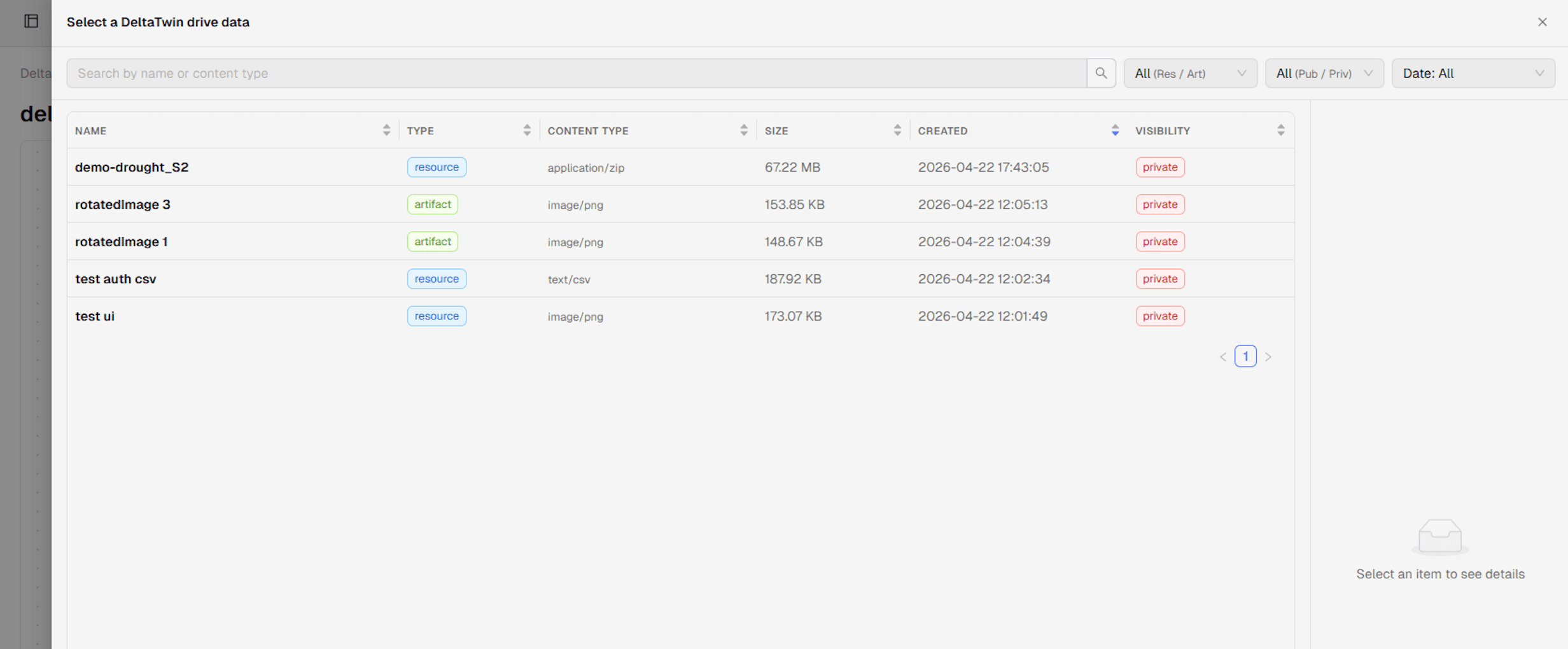
When you choose DeltaTwin Drive Data, the Select a DeltaTwin drive data modal opens, with search and filters (Resource/Artifact, Public/Private, Date) to locate the resource or artifact to use as input.
-
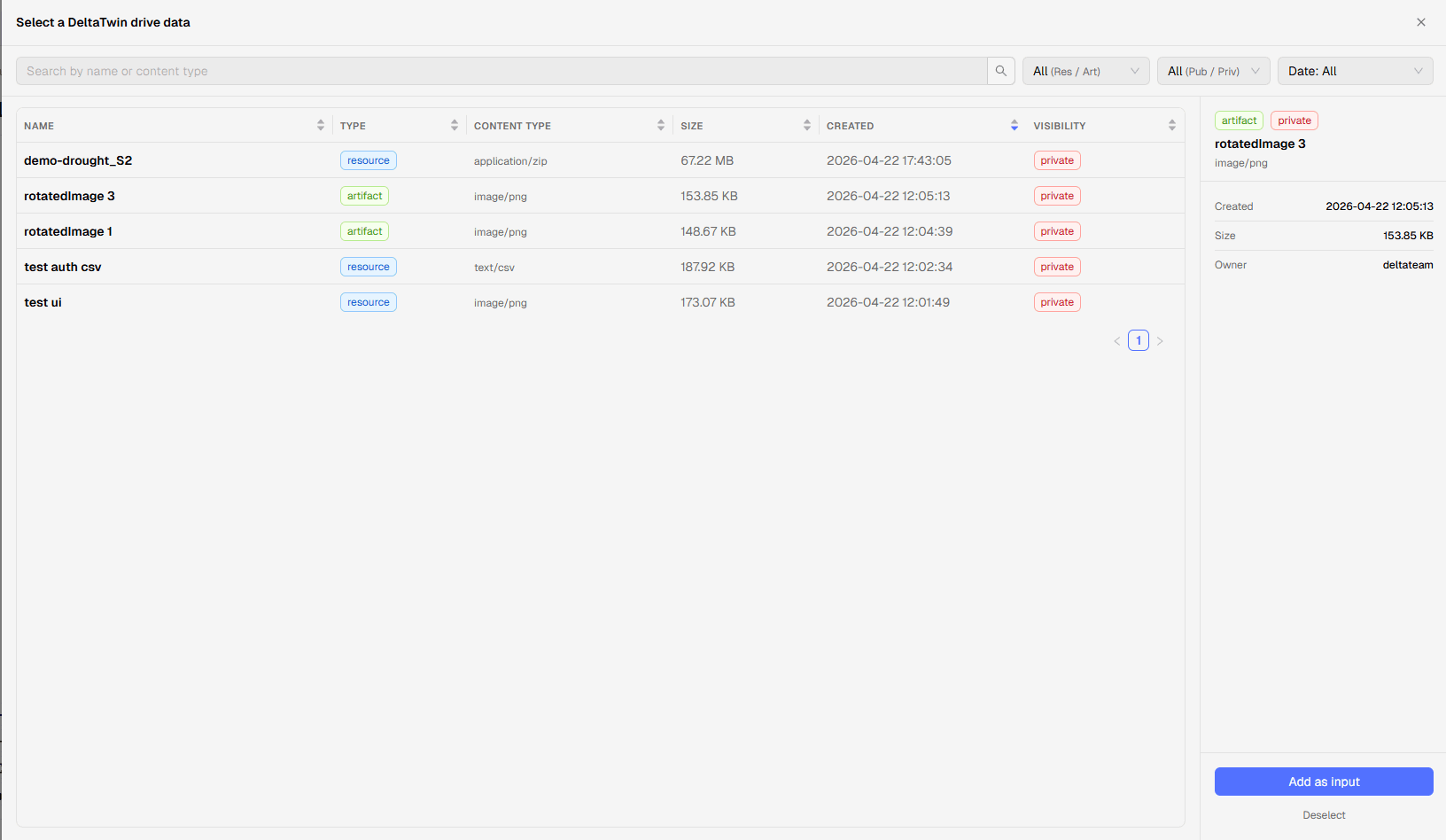
Click a row to see its details, then press Add as input to attach it to the run (or Deselect to clear the selection).
-
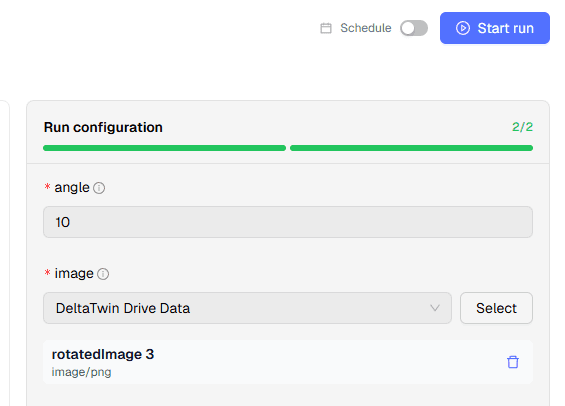
Once every required input is filled, the progress bar reaches N/N (all green) and the Start run button — greyed out until now — becomes active. Click it to launch the run.
-
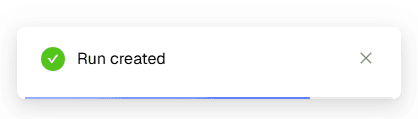
A notification confirms the run has started.
-
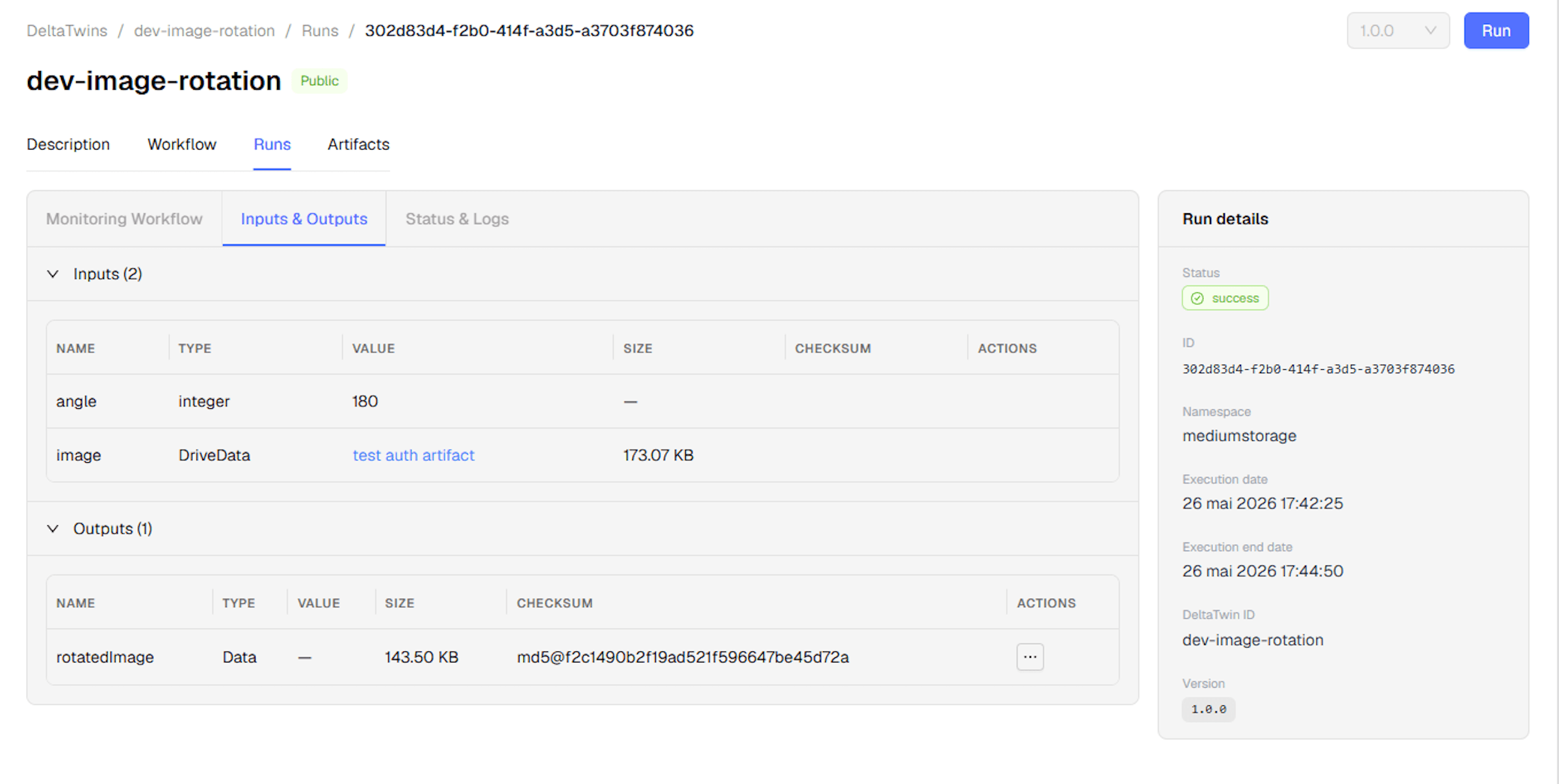
The details of the run are displayed with its status.
-
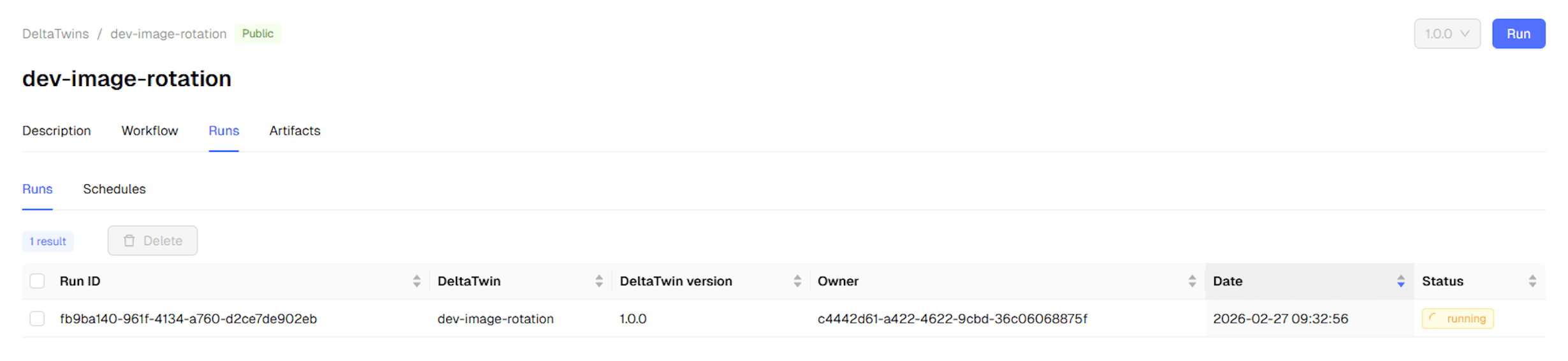
From the Runs page, you can see the list of executions of the DeltaTwin® component.
-
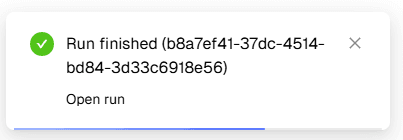
A notification informs you when the execution is finished.
-
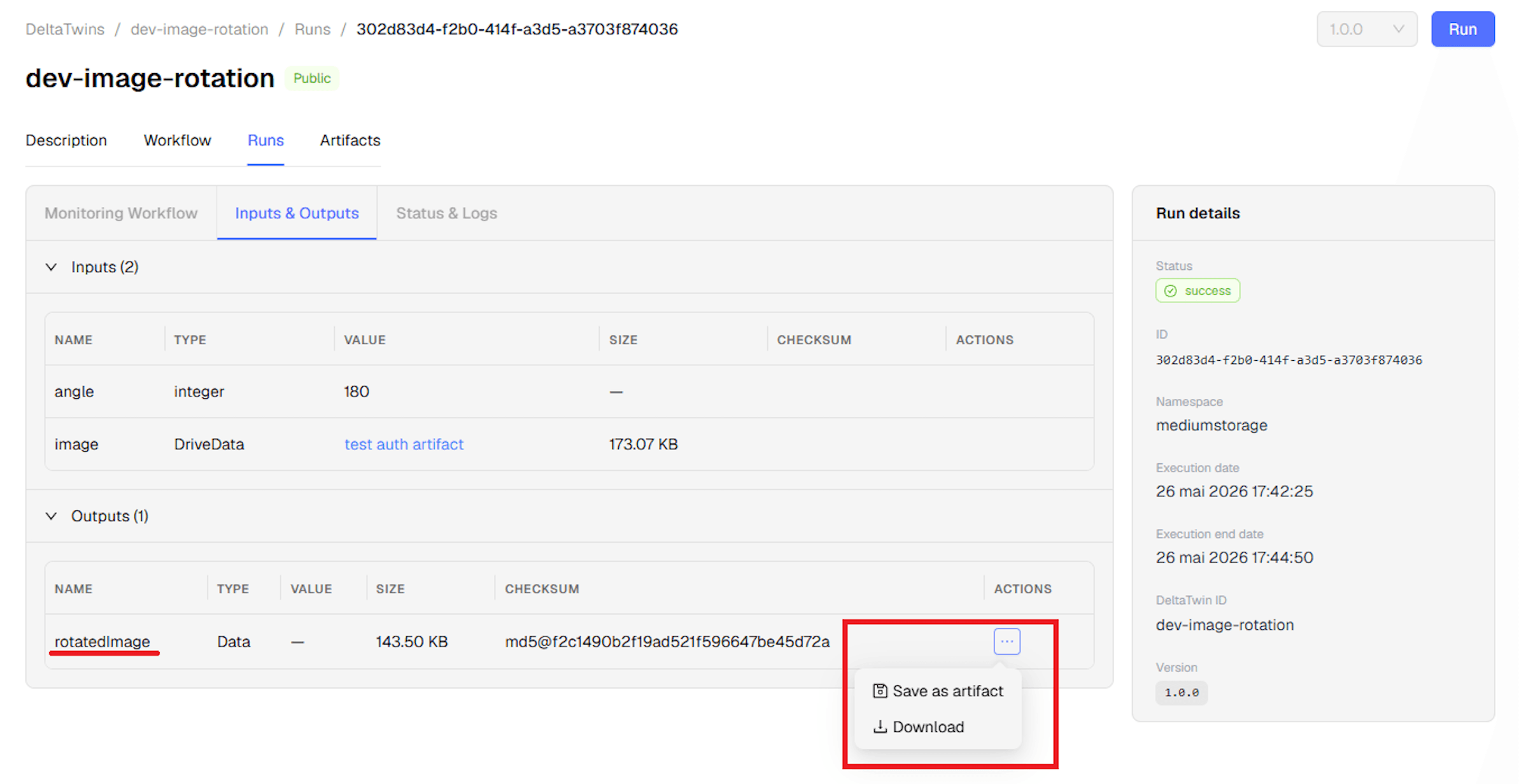
After execution, the run details contain the outputs.
To schedule this run instead of starting it immediately, toggle Schedule at the top of the Run Configuration page. See Schedule your DeltaTwin® execution for details.